AI Keyboard: What It Is, How It Works & Voice Typing Setup
You're standing in the kitchen, coffee in one hand, phone in the other, thumbing out a reply that's already three sentences too long. You know what you want to say. You just can't type it fast enough. So you give up and voice-message it instead.
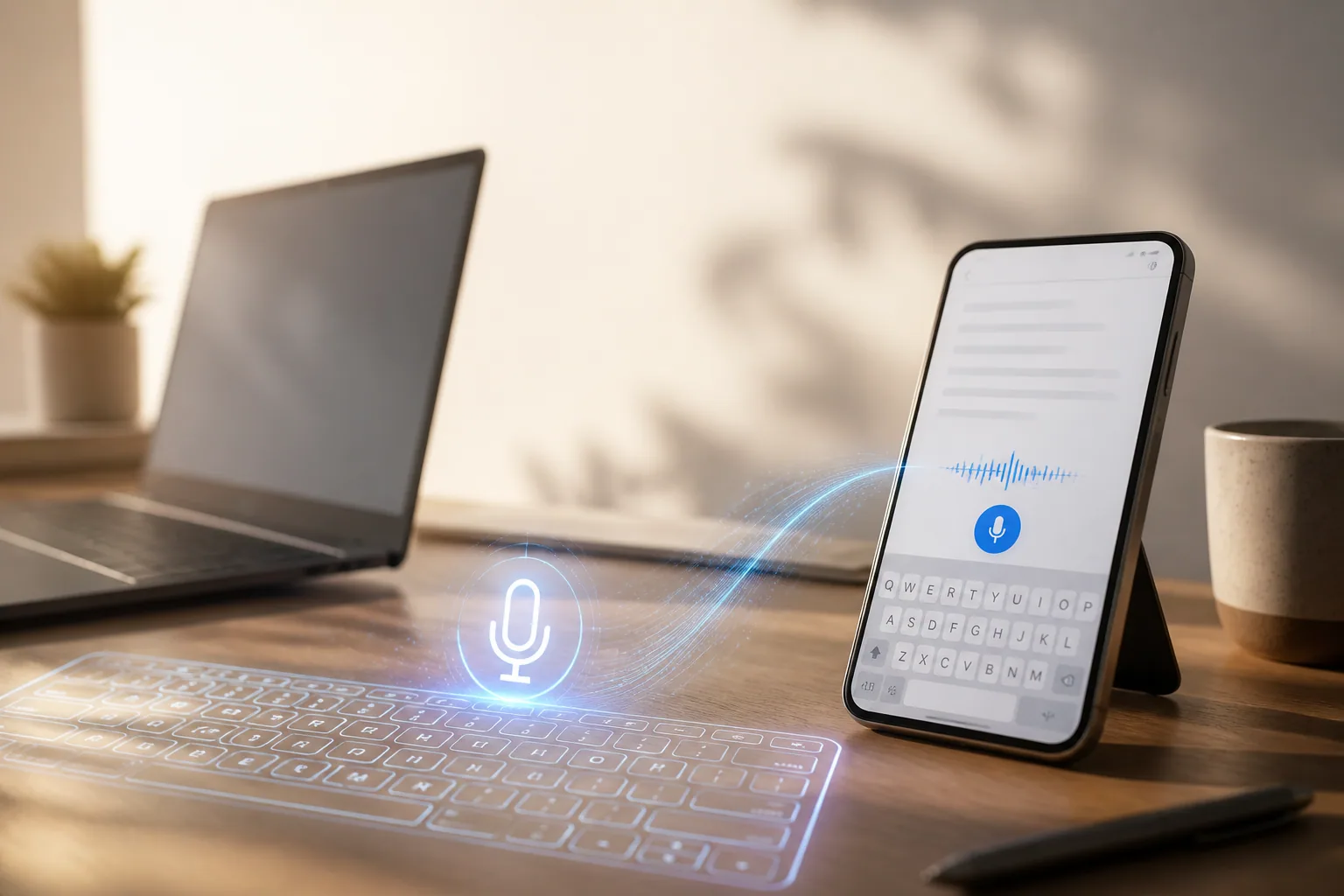
That gap between how fast you think and how slowly your thumbs move is exactly what an AI keyboard is built to close. It's still a keyboard — the thing you type or dictate into — but with a layer of AI on top that turns messy speech into finished text, rewrites your tone, suggests replies, and translates on the fly. This guide defines the term properly, because it gets thrown around loosely, explains the two families you'll run into and how the AI layer actually works, and shows you how to switch on voice typing on every device you own. If you already know what you're looking at and want the head-to-head on specific products, that's a separate piece: our best dictation software comparison.
What an AI keyboard actually is
Strip away the marketing and an AI keyboard is a keyboard or input layer that does more than map keystrokes to characters. It understands what you're trying to say and helps you say it better. In practice that shows up as four features, usually in some combination:
- Voice-to-finished-text dictation. You speak; it writes clean, punctuated text — not a literal transcript full of "um" and false starts.
- Tone and grammar rewriting. Highlight a blunt sentence, ask it to sound friendlier or more formal, and it rewrites in place.
- Smart replies. It reads the thread and offers a few one-tap responses that actually fit the conversation.
- Translation. Type or speak in one language, send in another, often without switching apps.
The keyword is layer. A true AI keyboard rides on top of whatever you're already doing — email, Slack, a text field on some random website — instead of trapping you in one note-taking app you then have to copy out of. That's the whole point, and it's also where a lot of tools quietly fall short.
The two families you'll run into
Once you start shopping, you'll notice AI keyboards split into two camps that solve different problems.
Writing-assistant keyboards are the evolution of what you already use. Gboard and SwiftKey are the big two, and in 2026 both got serious AI upgrades — Gboard leans on Google's Gemini for Smart Compose and context-aware replies that can read the chat before suggesting a response, while SwiftKey folded in Microsoft's Copilot and still predicts your next word correctly around 68% of the time in testing. These are typing-first. You tap keys; the AI polishes, predicts, and suggests. They're free, they're built in, and they're genuinely good for quick mobile messaging.
Voice-first AI keyboards flip the model. Here, talking is the main event and typing is the fallback. You hold a key, speak a paragraph, and finished text appears where your cursor is. Laxis Voice Keyboard, Wispr Flow, and Superwhisper live here. This is the camp that's growing fastest, and it's worth understanding why.
Why voice is having its moment
The math is brutally simple. Most people speak at 130 to 150 words per minute. Most people type at 38 to 40 WPM, and even that drops on a phone screen. A Stanford study put voice input at roughly 3 times faster than a smartphone keyboard — 161 words per minute versus 53 — and, counterintuitively, with a 20.4% lower error rate. You're not just faster when you speak. You're often more accurate too.
For years, voice dictation didn't deliver on that promise because the output was garbage. You'd say a clean sentence and get back a wall of lowercase text with no punctuation, your "ums" transcribed faithfully, and "there / their / they're" guessed wrong. You spent the time you saved cleaning it up. The shift in 2026 is that AI now does the cleanup. Modern voice keyboards don't transcribe — they interpret. They drop filler, add punctuation, break paragraphs, and hand you something you could actually send. That single change is what turned voice from a novelty into a daily tool.
Tip: speak in phrases, not word by word. AI keyboards use surrounding context to punctuate and format. If you dictate one hesitant word at a time, you rob the model of the context it needs. Say a whole thought at a natural pace — "send Priya the deck by Thursday and ask about the budget line" — and let the tool shape it. You'll get cleaner output and edit less.
What actually happens between your mouth and the screen
The thing that makes a modern AI keyboard feel different from the dictation you tried in 2018 is that there are now two models in the pipeline, not one.
Stage one is the speech engine. It takes the audio and produces a raw transcript — a stream of words with rough timing and, if you're lucky, a guess at where the sentences end. This is the part that's been quietly excellent for years. Open models like Whisper sit in the high nineties for word accuracy on clean audio, and the commercial engines are in the same range. Almost nobody loses here, which is why "accuracy" has stopped being a useful way to tell these products apart.
Stage two is a language model that edits. It reads the raw transcript and rewrites it: drops the "um" and the "you know," repairs the false start where you changed your mind halfway through the sentence, adds punctuation and capitalisation, breaks paragraphs, and adapts register to where you're typing — terser in Slack, more formal in an email. This stage is why the output reads like writing rather than a recording of you talking.
Two smaller pieces sit alongside that pipeline and matter more than their size suggests. A custom dictionary injects your own vocabulary — client names, product SKUs, drug names, code identifiers — so the engine stops guessing phonetically at the words you use most. And the insertion layer is the unglamorous bit that puts the finished text where your cursor is. On iOS that means shipping a keyboard extension; on desktop it means a system-wide hotkey. Tools that skip it leave you copying and pasting out of their own window, which is the most common reason people abandon an otherwise good app.
The second stage is also where the privacy question lives. Editing that well generally happens in the cloud, which is why most AI keyboards send audio to a server. On-device tools run a smaller model locally and accept a quality and speed tradeoff to keep your voice on the machine.
Tip: build your custom dictionary in the first week. Don't wait until the twentieth time a tool mangles your CEO's name. When you spot a word it consistently gets wrong, add it right then. Ten minutes of dictionary setup up front pays back every single day after, and it's the difference between "close enough" and "I trust this with client emails."
How to turn on voice typing on every OS
"Voice typing" is the generic name for the feature — Google uses it in Docs and on Android, Microsoft uses it in Windows, Apple calls its version Dictation. Whatever the label, every device you own already has it, and switching it on takes under a minute. Start here before you pay for anything.
iPhone and iPad. Settings → General → Keyboard → Enable Dictation. From then on a microphone appears on the keyboard in any text field. It runs on-device for many languages, so it keeps working in airplane mode. Full walkthrough, including the punctuation and emoji commands: Apple Dictation.
Mac. System Settings → Keyboard → Dictation, switch it on, then set the shortcut (double-tap Control by default). The setting worth understanding is on-device versus server processing, because it changes both privacy and whether long dictation sessions work offline. Step-by-step: how to use Dictation on Mac.
Windows. Press Windows key + H in any text field. Voice typing turns on immediately, with auto-punctuation available in the settings panel that appears.
Android. Tap the microphone on the Gboard toolbar. Voice typing is built in, works offline for downloaded languages, and supports basic voice commands.
Google Docs and the browser. Tools → Voice typing in Google Docs, Chrome only. It has the deepest voice-command vocabulary of any built-in option — full formatting, tables, and navigation by voice — and the sharpest limits. Commands list and browser caveats: Google Docs voice typing.
The built-ins all share the same ceiling: they transcribe literally. Your "um," your false start, and your mid-sentence rethink all land in the text, and none of them let you teach the engine your vocabulary. That's the gap AI keyboards exist to close — and the point at which it's worth looking at a paid tool.
Which AI keyboard is right for you?
Rather than rank the field here, it's more useful to know which of the four groups you belong to — the choice inside a group is mostly preference, while the choice between groups is the one that matters.
Voice-first AI keyboards (Laxis, Wispr Flow, Superwhisper and the rest of the paid tier) are for people who compose real volume by voice: email, notes, client updates, documentation. They give you finished text, custom dictionaries, and cross-app typing. Expect a subscription.
Writing-assistant keyboards (Gboard with Gemini, SwiftKey with Copilot) are for people who mostly want faster, better mobile messaging. Free, built in, no new app to install — but they predict and rewrite as you type rather than turning long speech into finished prose.
On-device tools are for anyone whose work can't touch a server. You trade cross-platform reach and some speed for the guarantee that audio never leaves the machine.
The built-ins are for short bursts and for finding out whether you like dictating at all before you spend anything.
If you've worked out which group you're in and now want the head-to-head — latency, languages, free tiers, and what each one costs — we tested five of them across full workdays in our best dictation software comparison. For the market-level view of how fast and how accurate these tools have actually become, with named sources, see the state of voice-to-text 2026.
The bottom line
The interesting thing about AI keyboards isn't that they're faster — it's that they change what's worth writing at all. When a two-paragraph reply costs you fifteen seconds of talking instead of two minutes of thumbing, you stop firing off "k, thx" and start actually answering. The tool doesn't just speed up the words you were already going to write. It lowers the bar for the thoughtful message you'd otherwise have skipped. That's a bigger shift than any WPM number captures.
Frequently asked questions
What is an AI keyboard?
An AI keyboard is a keyboard or input layer with AI features built in: voice-to-finished-text dictation, tone and grammar rewriting, smart replies, and translation. Instead of just mapping keystrokes to characters, it cleans up what you say or type. The two main types are voice-first AI keyboards (you speak, it writes finished text) and writing-assistant keyboards like Gboard and SwiftKey that predict, rewrite, and suggest replies as you type.
What is the difference between an AI keyboard and a voice keyboard?
A voice keyboard is one kind of AI keyboard. "AI keyboard" is the umbrella term for any input layer with AI built in, which includes writing-assistant keyboards like Gboard and SwiftKey that predict text, rewrite tone, and suggest replies as you type. A voice keyboard is specifically the voice-first kind: you speak, and it writes finished text. If you see the two terms used interchangeably, that's because the voice-first category has grown fast enough to dominate the conversation.
How do I turn on voice typing?
It's already on your device. On iPhone and iPad, enable it in Settings → General → Keyboard → Enable Dictation, then tap the microphone on the keyboard. On Mac, use System Settings → Keyboard → Dictation and double-tap Control. On Windows, press Windows key + H in any text field. On Android, tap the microphone in the Gboard toolbar. In Google Docs, use Tools → Voice typing in Chrome. All of these are free and transcribe literally — they won't remove filler words or learn your vocabulary.
What is the difference between literal transcription and finished text?
Literal transcription writes down every word exactly as spoken, including um, uh, false starts, and run-on sentences. Finished text uses AI to remove filler, fix punctuation and capitalization, and shape your speech into something you could actually send. A good voice keyboard gives you the second one so you spend less time editing.
Are AI keyboards private?
It depends on the tool. On-device options like Superwhisper and Apple Dictation process audio locally so nothing leaves your machine. Cloud tools like Wispr Flow and Laxis send audio to a server for processing; many offer a privacy or zero-retention mode. Before dictating anything sensitive, check whether the app runs on-device or in the cloud and read its retention policy.