Apple Dictation: How to Use It on iPhone, iPad & Mac
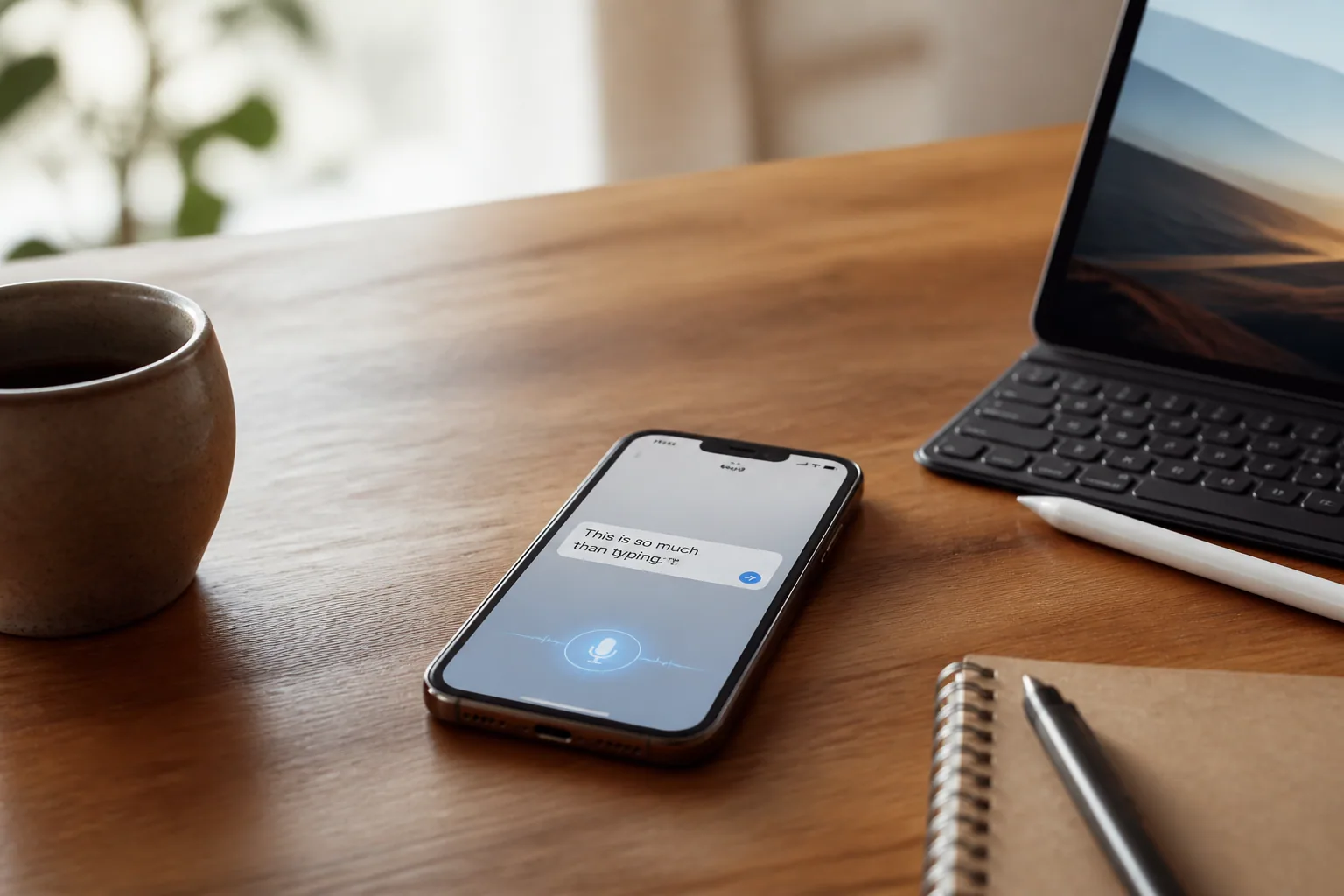
You're walking to the car with a bag of groceries in one hand and a thought you'll definitely forget in five minutes. You open Notes, jab the little microphone on the keyboard, and talk. Thirty seconds later there's a paragraph on the screen. Slightly mangled, but there.
That little microphone is Apple Dictation, and it's one of the most-used features almost nobody has actually configured. It's free, it's built into every iPhone, iPad and Mac, and once it's switched on it appears anywhere you can type — Messages, Mail, Slack, Safari address bar, a form on a website. Most people either don't know it exists or wrote it off years ago after it turned "Siobhan" into "shove on." It's better than it used to be. It's also more limited than the marketing suggests, and the limits are worth knowing before you trust it with something that matters.
What Apple Dictation actually is
Apple Dictation is a keyboard feature, not an assistant. That distinction explains most of its behaviour. It doesn't try to understand what you want; it transcribes what you say into the text field you're already in, and then it gets out of the way. There's no chat, no follow-up question, no interpretation. Speech in, characters out.
It lives at the operating-system level, which is why it shows up in third-party apps that never wrote a line of speech code. The developer of your to-do app didn't build voice input — Apple did, once, at the keyboard layer, and every text field inherits it. That's the whole trick, and it's the reason dictation on iPhone feels more universal than the voice features bolted onto individual apps.
The other thing worth knowing early: dictation and typing aren't modes you switch between. The keyboard stays on screen while you're dictating, so you can speak a sentence, tap in a correction with your thumb, then keep speaking. People who use it well go back and forth constantly rather than committing to a full voice-only monologue.
How to use Apple Dictation on iPhone
Setup takes under a minute and lives in a slightly odd place — under General, not under Siri.
- Open Settings → General → Keyboard. Scroll down to the Dictation block near the bottom.
- Switch on Enable Dictation. If a confirmation prompt appears, tap Enable Dictation again.
- Set your Dictation Languages. Tap the row and add every language you actually speak. You can dictate in any of them; the phone picks up which one you're using.
- Open any app with a text field — Notes and Messages are the easy test — and tap into it so the keyboard comes up.
- Tap the microphone key on the keyboard, next to the space bar in the bottom-right corner. It turns active, and a small waveform appears.
- Speak normally. Don't over-enunciate; a natural pace at conversational volume beats slow robot voice. In supported languages, commas, periods and question marks get added automatically as you go.
- Fix as you go. Tap the keyboard mid-dictation to correct a word, or tap a mis-transcribed word and pick from the suggestion bar. Dictation keeps listening.
- Stop when you're done by tapping the microphone key again or saying "stop dictation." It also stops on its own after about 30 seconds of silence.
If the microphone key isn't on your keyboard after all that, the usual culprits are Screen Time content restrictions (Settings → Screen Time → Content & Privacy Restrictions) or a third-party keyboard that doesn't expose the mic key. Switch back to the standard Apple keyboard and check again.
Tip: dictate the shape, not just the words. The single biggest quality jump in voice input comes from saying your structure out loud. "New paragraph," "colon," "new line" — used deliberately — turn a wall of speech into something you can actually read back. People who dictate well sound slightly odd out loud and produce clean text; people who dictate badly sound natural and produce soup.
Apple Dictation on iPad
On iPad the feature is identical to iPhone in behaviour and setup — Settings → General → Keyboard → Enable Dictation, then the microphone on the on-screen keyboard. Two differences are worth knowing.
With an external keyboard attached, the on-screen keyboard disappears and takes the microphone key with it. Dictation is still available: press the dedicated dictation key on a Magic Keyboard, or use Control twice if you've mapped it. This catches out a lot of people who assume the feature is missing.
Split View also matters. Dictation types into whichever app currently holds focus, so tapping the microphone while the wrong pane is active sends your text into the wrong app. Tap the text field first, then dictate.
Dictation on the Mac is a different setup with its own shortcut and its own settings panel — that's covered separately in how to use Dictation on Mac.
Speaking punctuation, emoji and line breaks
Automatic punctuation handles the easy cases — Apple's system inserts commas, periods and question marks for you in supported languages — but it won't guess a colon, a paragraph break or a set of parentheses. For those you say the mark out loud, and the vocabulary is worth ten minutes of practice.
Apple Dictation commands worth memorising
- Basic punctuation: "period", "comma", "question mark", "exclamation point", "colon", "semicolon", "apostrophe", "hyphen", "dash"
- Brackets and quotes: "open parenthesis" / "close parenthesis", "quote" / "end quote"
- Structure: "new line" (single break), "new paragraph" (blank line between paragraphs)
- Capitalisation: "cap" capitalises the next word; "caps on" / "caps off" capitalises each word in between; "all caps" shouts a single word; "all caps on" / "all caps off" shouts everything in between
- Emoticons: "smiley" gives :-), "winky" gives ;-), "frowny" gives :-(
- Emoji: in supported languages, say the name plus "emoji" — "heart emoji", "car emoji" — and the actual glyph appears
- Spelling a word: "Let's invite Stephen, S-T-E-P-H-E-N" — say it, then spell it
- Editing by voice: "select" or "delete" followed by the phrase you want to change. Apple limits these editing commands to U.S. English on iPhone 12 and later (the iPhone SE is excluded)
- Ending: "stop dictation"
Emoji by voice is the one people don't believe until they try it, and it's genuinely faster than hunting through the emoji picker with a thumb. It's also language-dependent — Apple lists emoji insertion as available in certain languages only, so if "heart emoji" produces the literal words on your device, that's your answer.
On-device processing and offline use
On iPhone and iPad, many languages run entirely on the device. That's why dictation keeps working in airplane mode and why short bursts feel instant — nothing is making a round trip to a server.
Two practical consequences. Offline dictation is capped in length compared with server-based dictation, so very long passages may cut off where a connected session wouldn't. And the on-device language set is smaller than the full list Apple supports, so a language you can select isn't necessarily one that works offline.
If you also dictate on a Mac, the same setting exists there but is exposed differently and has a larger effect on long sessions — our Mac guide covers where to find it and when to change it.
Dictation, Siri and Voice Control are three different things
This confuses almost everyone, including people who've owned iPhones for a decade, so here's the clean version.
Dictation is transcription. It puts your words into a text field and does nothing else. It has no idea what the words mean.
Siri is an assistant. It interprets intent and takes actions — set a timer, text Dad, play the podcast. Siri and Dictation share underlying speech technology and even share a privacy policy page, which is a big reason people conflate them, but you don't need Siri enabled to dictate.
Voice Control is an accessibility feature that lives under Settings → Accessibility, and it's a different animal entirely: it lets you operate the whole device by voice, tapping buttons, scrolling, and navigating with number and grid overlays. It also has its own, richer text-editing command set — which is why some heavy voice users deliberately run Voice Control instead of Dictation for writing, and why "just use Voice Control" is a genuinely useful answer for anyone who can't reliably use the touchscreen.
If you've ever wondered why your dictation editing commands don't work the way a YouTube tutorial showed, this is usually why: the tutorial was demonstrating Voice Control.
Where Apple Dictation runs out of road
Everything above is the good news. Here's the honest part, and none of it is fixable with better technique.
Apple Dictation types what you literally say. Every "um," every "like," every false start, every time you begin a sentence, abandon it, and begin again — it all lands in the text field. That's not a bug; it's the design. It's a transcription engine, and a faithful transcription of human speech reads terribly, because people don't talk in finished sentences. Which means the time you save by not typing, you often spend cleaning up.
It stops on you. About 30 seconds of silence and it ends the session — long enough for a sentence, short enough that pausing to think mid-paragraph kills the run. It has no custom dictionary, so proper nouns and jargon stay wrong. Accuracy drops in a noisy room, on a windy street, and — well documented and still not solved — for speakers with strong regional or non-native accents. And it will never restructure a rambling voice note into three tidy bullet points, because restructuring isn't what it's for.
That gap is exactly where the newer voice tools live. The Laxis Voice Keyboard takes the same spoken input and does the part Apple Dictation deliberately skips: stripping filler, fixing the messiness of spoken language, and holding a custom dictionary so your product names and colleagues' names come out spelled right. It runs on iOS, Android, macOS, Windows and as a Chrome extension, which matters if your day isn't spent entirely inside one operating system. Apple Dictation is excellent at capturing speech. What it never claims to do is turn speech into finished writing.
If you've hit those limits and want to see how the paid options actually compare, we tested five of them across full workdays in our guide to the best dictation software in 2026.
The bottom line
The interesting thing about Apple Dictation isn't how good it is — it's how much it has quietly changed what people expect from a keyboard. A decade ago, talking to your phone in public marked you out. Now half the people on a train platform are dictating messages, and the ones who aren't are mostly the ones who tried it in 2015 and never went back. If that's you, the version sitting on your phone today is not the version that embarrassed you then. Give it one honest week — mic key, punctuation commands, a couple of Text Replacement shortcuts — and see how much of your typing survives.
Frequently asked questions
How do I turn on Apple Dictation on iPhone?
Open Settings, tap General, tap Keyboard, and switch on Enable Dictation. Confirm the prompt if one appears. A microphone key then shows up on the on-screen keyboard — tap into any text field, tap the mic, and speak. The keyboard stays open while you dictate, so you can switch between voice and typing without stopping.
Does Apple Dictation work offline?
In many languages it does. Apple processes keyboard dictation requests on the device itself for supported languages, so no internet connection is required and the audio never leaves your iPhone or iPad. Not every language is on the on-device list, and Dictation used inside Search still needs server processing. Keyboard settings indicate whether your audio and transcripts are processed on-device.
What is the difference between Apple Dictation, Siri and Voice Control?
Dictation is a keyboard feature that turns speech into text in whatever field you are typing in. Siri is an assistant that interprets requests and performs actions such as setting timers or sending messages. Voice Control is an accessibility feature that lets you operate the whole device by voice — tapping buttons, scrolling, navigating with grid and number overlays — and includes its own text editing commands. They are three separate systems with three separate settings screens.
How do I dictate punctuation and emoji on iPhone?
Say the punctuation mark out loud: "period", "comma", "question mark", "exclamation point", "open parenthesis", "new line", "new paragraph". Capitalisation commands include "cap" for the next word and "all caps on" / "all caps off" for a run of words. Emoticons work with "smiley", "winky" and "frowny". In supported languages you can also say things like "heart emoji" or "car emoji" to insert the actual emoji. In supported languages Dictation also adds commas, periods and question marks automatically as you speak.
Why does Apple Dictation stop while I am still thinking?
Dictation ends automatically after about 30 seconds of silence, and it will also end if you leave the text field or lock the phone. For longer stretches of speaking, keep a light pace rather than pausing to plan the next sentence, or dictate in shorter passes and edit afterwards. You can also stop it deliberately by tapping the microphone key or saying "stop dictation".
Can Apple Dictation learn names and technical jargon?
Not directly. Apple Dictation has no user-editable custom dictionary for keyboard dictation, so unusual names, product names and industry terms are often transcribed phonetically. The common workaround is adding a Text Replacement shortcut in Settings → General → Keyboard → Text Replacement so a phrase you can reliably say expands into the spelling you want. You can also spell a word during dictation by saying it letter by letter.