How to Transcribe Audio to Text for Free (Fast & Accurate)
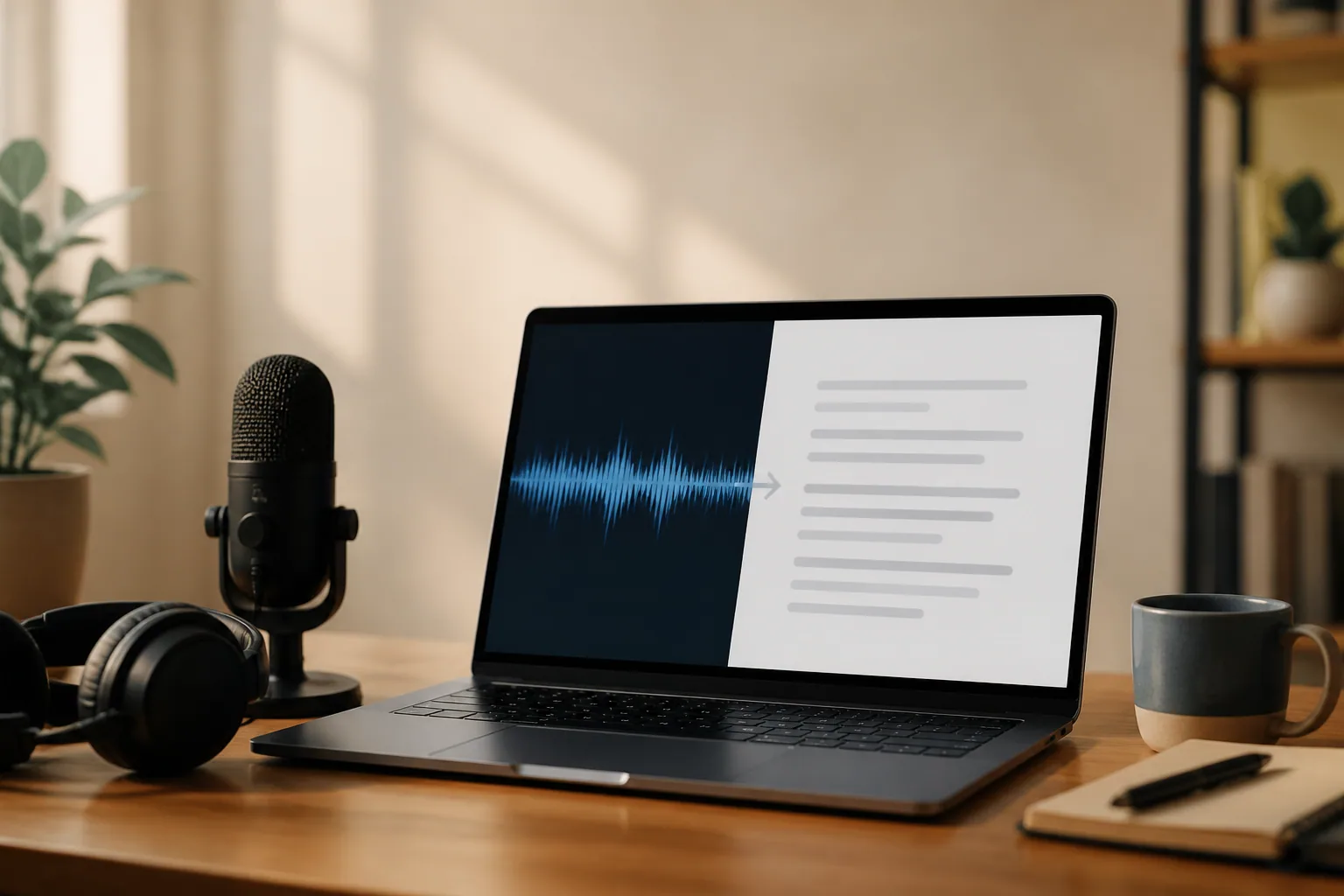
You've got a 40-minute recording sitting on your phone. An interview, a lecture, a voice memo you rambled into on a walk. And now you need the words on the page, ideally without paying anyone or spending your whole afternoon on it.
Good news: you can transcribe audio to text for free, and the tools have gotten genuinely good. The catch nobody mentions up front is that "good" depends far more on your recording than on your software. This guide walks through the real free methods, when each one wins, and the part most articles skip entirely: what actually determines whether your transcript comes out clean or comes out as gibberish you have to fix line by line.
The free tools already on your devices
Before you sign up for anything, check what you already own. Most phones and office suites ship with transcription built in, and for a lot of jobs it's all you need.
On an iPhone, the Voice Memos app transcribes recordings on-device. If you're on an iPhone 12 or newer running iOS 18 or later, open a recording, tap the speech-bubble icon above the playback controls, and the text appears with live word highlighting as it plays. It runs entirely offline in about ten languages, so nothing gets uploaded anywhere. That's a real privacy win for anything sensitive.
On a Google Pixel, the Recorder app does something Apple still doesn't: it transcribes in real time while you record, fully on-device and offline. No internet, no account, no cost. The trade-off is it's Pixel-only, so if you're on another Android phone you'll need a different route.
Google Docs Voice Typing is the free workhorse for a lot of people. Open a document, go to Tools > Voice typing (or press Ctrl+Shift+S on Windows, Cmd+Shift+S on Mac), and speak. It's free with no minute cap and works surprisingly well for clean, steady dictation. The honest limitations: it barely adds punctuation, and it's built for live speech, not files. To transcribe a recording you already have, people play the audio out loud on one device while Docs listens on another, which works but degrades quality.
Microsoft Word's Transcribe tool is more capable but it isn't free. It needs a paid Microsoft 365 subscription and an internet connection. What you get for that: upload a file (.mp3, .wav, .m4a, or .mp4), and Word separates speakers, adds timestamps, and covers more than 80 languages, up to 300 minutes of uploaded audio a month. If you already pay for Microsoft 365, it's one of the better options hiding in plain sight. If you don't, skip it. Word's built-in Dictate feature, by contrast, is free and handles live speech-to-text.
Tip: Match the tool to the source. On-device recorder apps (iPhone Voice Memos, Pixel Recorder) are best for audio you're capturing right now. Upload-based tools are best for files you already have. Trying to force a live-dictation tool to transcribe a saved file is where most people waste an hour.
Free web transcribers and AI tools
When the built-in options don't fit, a browser-based transcriber usually will. You upload a file, wait a few minutes, and download the text. These are the tools that made free transcription actually usable in the last couple of years, because most now run on modern speech-recognition models instead of the clunky engines of a decade ago.
The free tiers vary, so it's worth knowing the shape of them before you pick one:
- Notta — 120 minutes free per month, good for occasional longer recordings.
- Otter.ai — 300 free minutes a month, strong on meetings and real-time capture.
- TurboScribe — three files a day, up to 30 minutes each, no monthly cap.
- OpenAI's Whisper — free and open-source with no minute limit if you're comfortable running it yourself, which is the catch for non-technical users.
Most of these accept the formats you'd expect (MP3, WAV, M4A, FLAC), with file-size caps commonly landing around 500 MB. A few will take uploads up to 1 GB. The one number that trips people up is the per-file length limit, which is separate from the monthly total. A tool might give you 120 minutes a month but choke on a single 90-minute file. Check the per-file limit before you upload a long recording, not after it fails.
The easiest free path, step by step
If you just want a clean transcript of a recording with the least friction, here's the route I'd point almost anyone to. This is where an AI meeting assistant like Laxis earns its keep for a specific case, and I'll get to that, but for a one-off audio file, a free web transcriber is the move.
- Get your file ready. Make sure it's in a common format (MP3, WAV, or M4A). If your recorder saved something exotic, most tools convert on upload, but MP3 is the safe bet.
- Pick a free transcriber that fits your file length. For anything under 30 minutes, TurboScribe's free plan is quick. For a longer single file, Notta's 120 free monthly minutes give you more room.
- Upload and set the language. This one step matters more than people think. Telling the tool the correct spoken language up front measurably improves accuracy, especially for non-English audio.
- Wait, then review. Transcription usually takes a fraction of the audio's length. When it's done, read the first minute against the audio to catch systematic errors, misheard names, jargon, a recurring wrong word.
- Clean up and export. Fix the handful of errors, add speaker labels by hand if the free tool didn't, and export to text, Word, or SRT.
That's the whole thing. For clean, single-speaker audio, you'll spend more time reading this list than actually doing it.
What actually determines accuracy
Here's the part that separates a usable transcript from a mess, and it has almost nothing to do with which tool you chose. Every modern transcriber uses roughly similar speech-recognition tech under the hood. What varies wildly is the audio you feed it.
On clean, single-speaker audio recorded with a decent microphone, expect somewhere around 85 to 95 percent accuracy. Top engines hit 95 to 98 percent on studio-quality recordings. But on real-world audio, the numbers fall off a cliff, often dropping below 80 percent. That 20 percent error rate might be fine for a personal voice note and a disaster for anything you're quoting or publishing.
Four things do most of the damage:
Background noise
The single biggest accuracy killer. HVAC hum, traffic, a coffee shop, wind on a phone mic. Once noise gets loud relative to the speech, the engine starts guessing.
Microphone distance and quality
A mic six to twelve inches from the speaker captures the full voice. A laptop mic across the room captures a thin, echoey version the engine struggles with.
Crosstalk and overlapping speakers
When two people talk at once, the model can only really follow one. Multi-speaker audio is dramatically harder than a single voice.
Accents and jargon
Strong accents, technical terms, and proper nouns are where even good tools slip. Setting the right language and dialect helps, but expect to fix names by hand.
Notice that three of those four are things you control before you ever hit record. Which brings us to the most cost-effective upgrade you can make.
The tip that beats any software: A $30 USB microphone will improve your transcription accuracy more than switching to any premium transcription tool. The engine can only work with the audio it's given, and a clean signal from a close, decent mic does more than any amount of AI cleverness applied to a muddy laptop recording.
Runner-up, free: get the mic close and kill the noise. Move within a foot of the speaker, close the window, turn off the fan. Ten seconds of setup saves you twenty minutes of corrections.
Speaker labels, long files, and the free-tool ceiling
Two limitations show up constantly with free transcription, and both are worth knowing before you commit to a workflow.
The first is speaker labels, technically called diarization, figuring out who said what. It's the first feature free tiers tend to strip out. Plenty of free transcribers hand you one unbroken wall of text with no indication of speakers at all. Even when diarization is included, it runs around 80 to 95 percent accurate and stumbles on overlapping speech and similar-sounding voices. If you're transcribing a two-person interview and need "Interviewer" and "Guest" clearly separated, confirm the tool actually does that on the free plan before you rely on it.
The second is length. Free tiers love to cap per-file duration. A three-hour recording might need to be split into chunks, or it might simply exceed what a free plan allows in a month. There's no shame in splitting a long file, but plan for it.
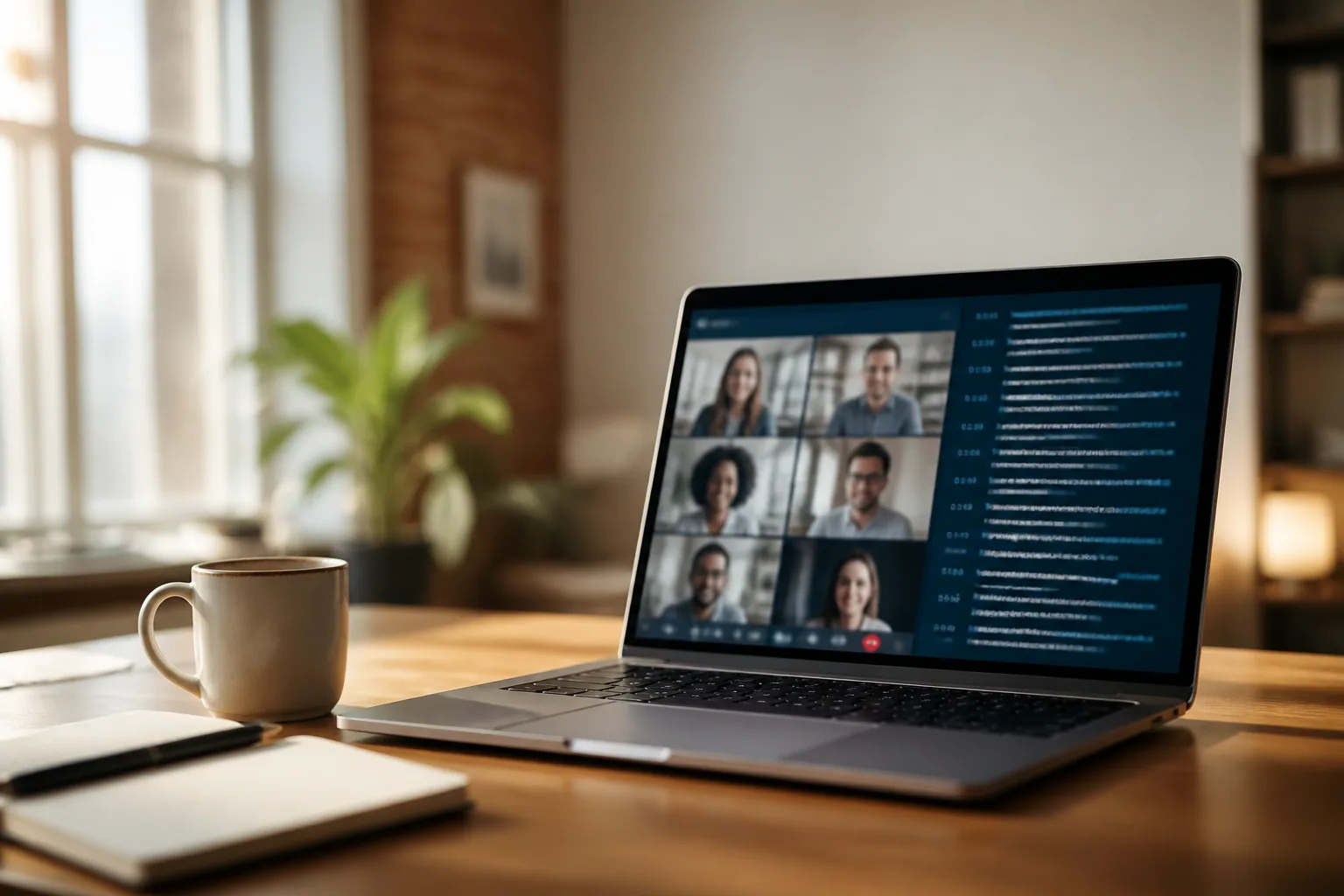
These ceilings are exactly why meetings and sales calls are a different animal from a one-off audio file. If you're transcribing conversations you have on a regular basis, an after-the-fact upload workflow gets old fast. This is where a purpose-built AI meeting assistant like Laxis changes the shape of the problem: it joins your Zoom, Google Meet, or Teams call, transcribes in real time, labels each speaker as they talk, and hands you a summary with action items and decisions when the call ends. You're not left with a wall of text to clean up. You're left with notes you can actually use, and they sync straight to HubSpot or Salesforce. For a random audio file, a free transcriber is right. For the calls you do every week, real-time capture with speaker labels built in is a different level of useful.
The bottom line
The interesting shift is that transcription stopped being the hard part. The engines are good enough that the bottleneck moved upstream, to the ten seconds of thought before you record. Get the mic close, quiet the room, name the language, and any free tool will hand you something clean. Skip all that, and no amount of premium software will save the recording. Treat the capture with a little care and you rarely have to think about the transcription at all.
Frequently asked questions
What is the best free way to transcribe audio to text?
For a recording you already have, uploading it to a free AI transcriber like Notta (120 minutes free per month) or TurboScribe (three files a day, up to 30 minutes each) is usually the fastest path and handles most audio formats. If you're already in Google's ecosystem, Google Docs Voice Typing is genuinely free with no minute cap. On an iPhone 12 or newer running iOS 18 or later, the Voice Memos app transcribes on-device for free with no upload required.
Is Microsoft Word's Transcribe feature free?
No. Word's Transcribe tool requires a paid Microsoft 365 subscription and an internet connection. It caps uploaded audio at 300 minutes per month, supports .mp3, .wav, .m4a and .mp4 files, and covers more than 80 languages. It's a strong option if you already pay for Microsoft 365, but it isn't available in the free web or desktop-only versions of Word.
How accurate is free audio transcription?
On clean, single-speaker audio recorded with a decent microphone, expect roughly 85 to 95 percent accuracy, and top engines can reach 95 to 98 percent on studio-quality recordings. On messy real-world audio with background noise, crosstalk, or strong accents, accuracy often drops below 80 percent. Audio quality matters more than which tool you pick.
Can free transcription tools label who said what?
Sometimes, but it's the first feature paywalled. Speaker labeling, called diarization, runs around 80 to 95 percent accurate and struggles with overlapping speech and similar-sounding voices. Many free tiers return one unbroken block of text with no speaker labels at all, so if knowing who said what matters, check that the tool supports diarization before you rely on it.
What audio formats and file lengths do free transcribers accept?
Most free transcribers accept MP3, WAV, M4A and FLAC, with file size caps commonly around 500 MB. Length limits vary widely: some free tiers stop at 15 minutes per file, TurboScribe allows 30 minutes per file three times a day, and a few tools let you upload files up to 1 GB. For a long recording, check the per-file limit before you start rather than after.